
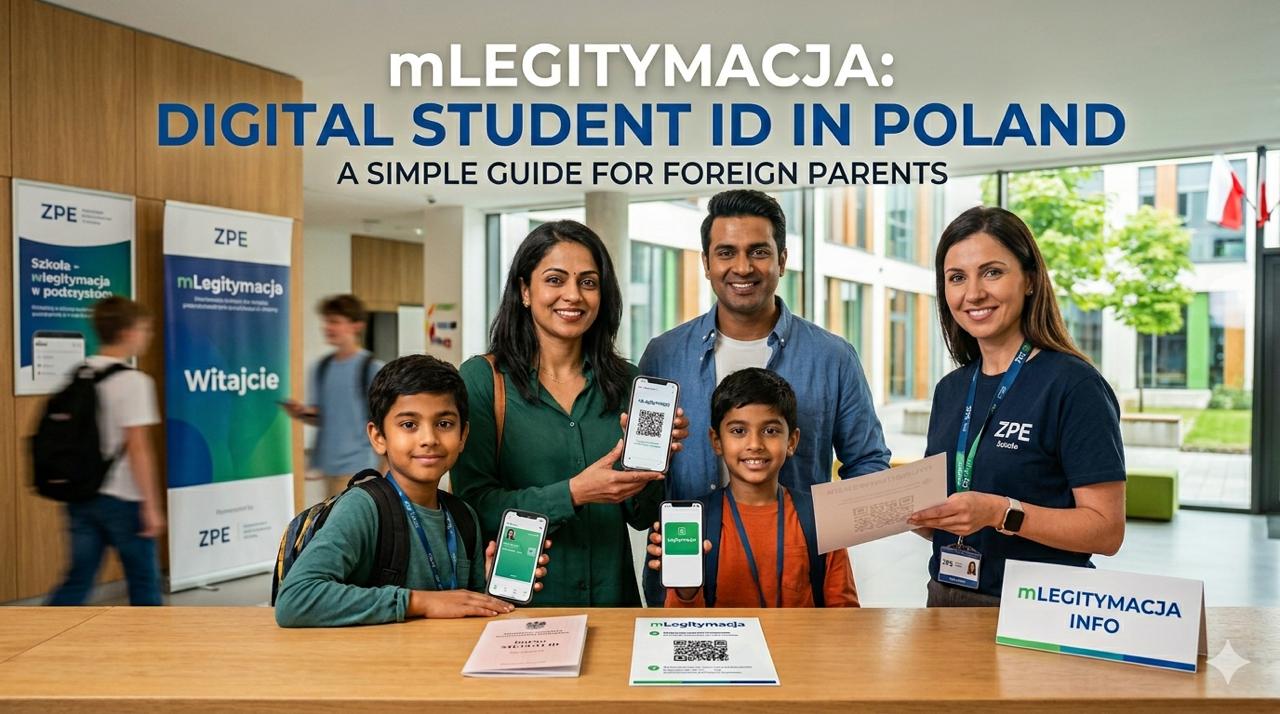
If you are an expat or foreign parent navigating the Polish school system, you might have heard about the mLegitymacja. It is the official digital version of your child’s student ID card.
The mLegitymacja is highly convenient: it lives right on your smartphone, serves as a valid legal ID, and grants your child access to various student discounts (such as public transport or museum tickets).
If you are trying to figure out how to set it up, manage it, and renew it each year, this complete step-by-step guide is designed specifically for foreign parents.
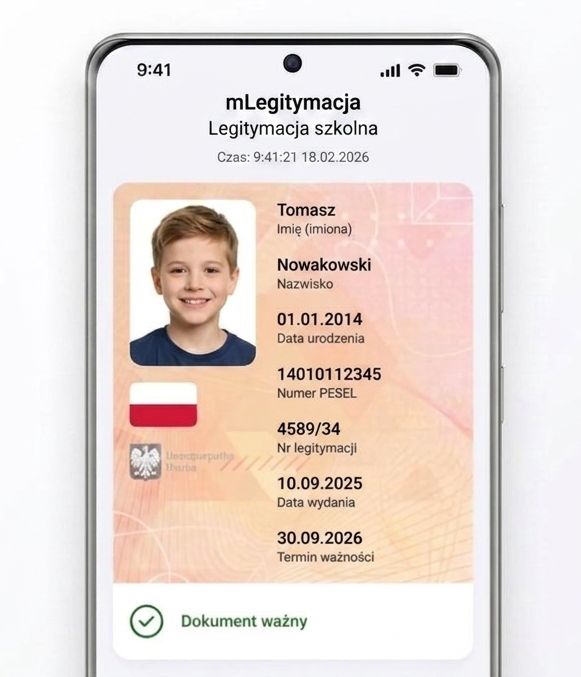
Why Use the mLegitymacja?
- Always on hand: You don’t need to carry the plastic or paper card with you; a smartphone is enough.
- Works offline: Once downloaded, you can view the ID and verify credentials even without internet access.
- Legally valid: It is fully recognized by Polish transport authorities and cultural institutions on par with the physical card.
- Child-friendly: You can customize the look of the card in the app using themes like space or geometry.
What You Will Need:
- A smartphone with access to the internet.
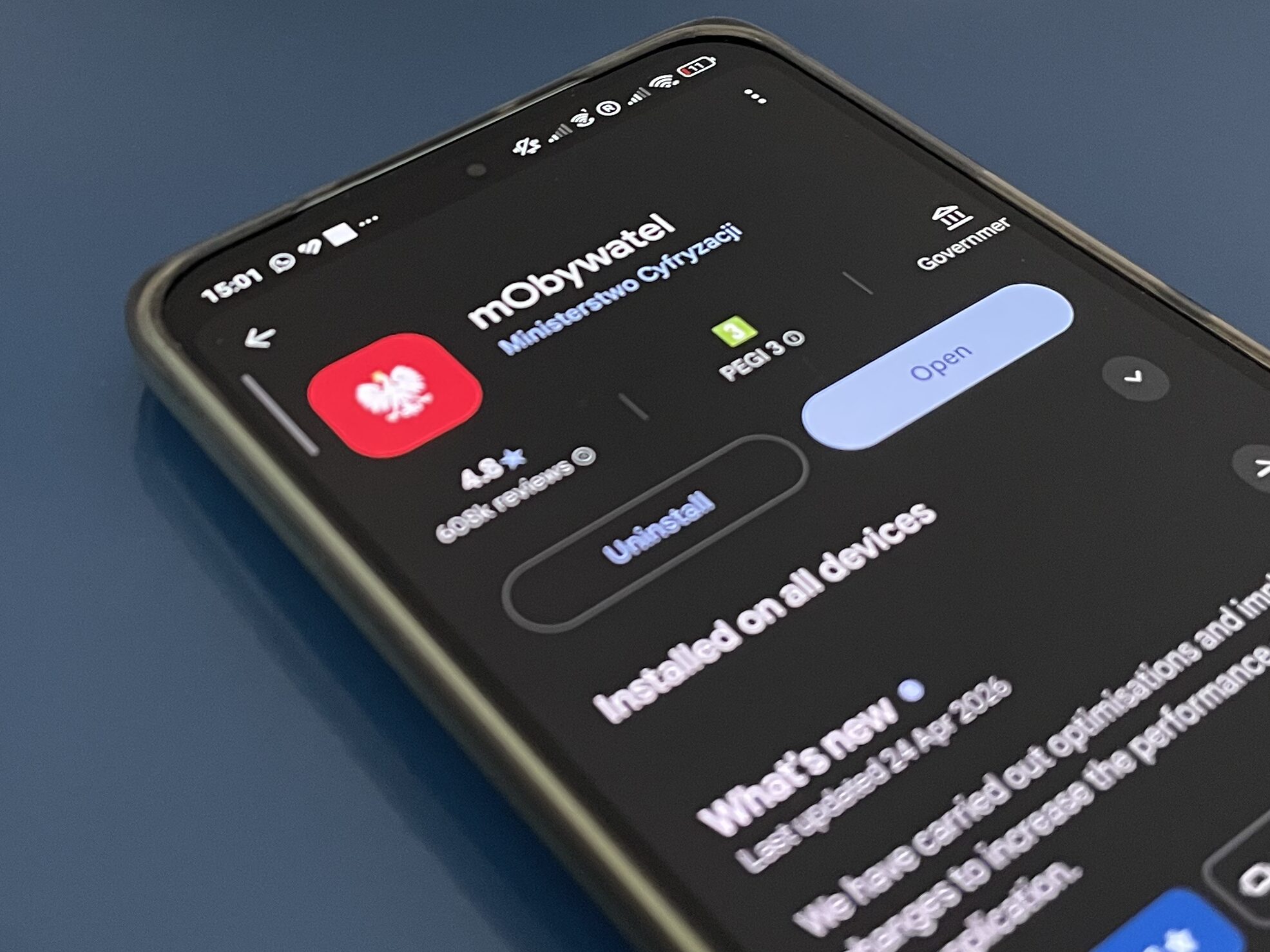
- The mObywatel app downloaded (available on Android and iOS).
- Note: If your child is under 13 or doesn’t have a Trusted Profile (Profil Zaufany), you will use the mObywatel Junior feature inside the app. As a parent, you can add your child’s ID to your own mObywatel application!
The app content is available in English Language !!
Step-by-Step Guide to Initial Activation
Step 1: Request Your Child’s ZPE Credentials:
To get the unique QR code for the digital ID, you need to use the Zintegrowana Platforma Edukacyjna (ZPE) platform.
- Action: Contact your child’s school homeroom teacher (wychowawca) or school administration and ask for the login details for the ZPE website (
zpe.gov.pl). - The school will provide you with a login and temporary password that they generate through the state’s educational information system (SIO).
Step 2: Log in to the ZPE Portal:
- Visit the Zintegrowana Platforma Edukacyjna (ZPE) website.
- Log in using the credentials the school provided you.
- Once logged into your (or your child’s) dashboard, look for the notification or go directly to the mLegitymacja tab to view your personal QR code or activation code.
Step 3: Open the mObywatel App
- Open the mObywatel app on your phone.
- If you are managing an ID for a younger child, make sure you are in the mObywatel Junior section of the app.
- Click the button to add a new document and choose Legitymacja szkolna (School ID).
Step 4: Scan the QR Code
- The app will prompt you to scan a QR code using your phone’s camera.
- Point your camera at the QR code generated from your ZPE profile.
- The app will download the data directly from the educational system and activate your child’s digital ID!
Holograms and The Importance of the Physical Card
In Poland, a student ID (whether paper or plastic) is only valid when it has the current academic year’s hologram sticker on it.
What is the hologram?
The hologram is a special, government-issued reflective sticker with the current academic year and an individual serial number. The school administration (usually the main secretary’s office or the homeroom teacher) places it on the physical student card in a designated spot on the back.
The Link: The validity of the mLegitymacja is strictly tied to the physical card. If the physical card is not renewed, the digital version will also show up as expired.
The Expiration Date: Student IDs expire on September 30 of the following school year.
Risk Warning: Using an expired document can result in a loss of student discounts or even fines during public transport ticket inspections.
Renewals, Holograms, and Validity
It is a common point of confusion whether the school updates the app automatically. No, the school cannot extend the digital mLegitymacja on their own without your (or your child’s) action.
When do IDs expire?
September 30 Deadline: The mLegitymacja is valid until September 30 of the following school year.
Risk Warning: Using an expired document (either digital or physical) can lead to a loss of student discounts and even a fine during public transport ticket inspections.
The Role of the Hologram
For the digital ID to be valid, the physical card must be up to date.
- Update the Physical Card: Bring the physical card to the school office. The school will place a new government-issued hologram sticker for the new academic year.
- School’s Role: The school must then confirm this continuation in the state educational system (SIO) and provide a new activation or validity code.
How to Extend the Digital ID (Parent Action)
The school does not push the update automatically. You must perform a manual step on your phone:
- Obtain the new activation/validity code from the school administration.
- Open the mLegitymacja in your mObywatel app.
- Tap “Więcej” (More).
- Select “Przedłuż ważność” (Extend validity).
- Enter or scan the new code provided by the school.
(Note: You do not need to repeat the entire initial setup process, just this quick extension step).
What happens when changing schools?
If your child moves to a new school, the old mLegitymacja becomes invalid because the ID is tied directly to the institution.
- The previous school’s mLegitymacja will become invalid.
- You will need to remove the old, expired ID from the app.
- The new school will issue a new physical school ID.
- You will need to obtain new login credentials (ZPE login and code) from the new school’s administration and scan the new QR code to set it up as if it were the first time.
Can mLegitymacja be configured on multiple mobiles?
No, the mObywatel application (and therefore the mLegitymacja) cannot be active on more than one mobile device at the same time.
For security and privacy reasons, your digital documents (including the mLegitymacja) are bound to a single mobile device using a secure digital certificate.
What You Need to Know
- One Active Device: You cannot log in with the same account on two different phones simultaneously.
- Automatic Deactivation: If you activate or log in to the mObywatel app on a new phone, the application on the previous device will be automatically deactivated for security purposes.
How to Transfer to a New Phone?
If you or your child get a new smartphone, you can easily migrate the digital ID by following these steps:
- Deactivate the old app: Open the mObywatel app on the old phone, go to “Więcej” (More), and select “Wyloguj się” (Log out). It is also recommended to delete the application completely.
- Install on the new phone: Download the current version of the mObywatel app from the Google Play Store or Apple App Store.
- Log in: Log in using your chosen method (Profil Zaufany, e-dowód, or your Polish bank credentials). The app will download and verify your documents, including your child’s mLegitymacja.
Managing a Child’s ID (mObywatel Junior)
If you are using the mObywatel Junior feature on your device to display your child’s student ID:
- The child’s ID will be stored locally on your phone.
- It cannot simultaneously be installed on both your phone and your child’s phone. If your child is older and you want the mLegitymacja to be on their phone, you will need to log out of the parent’s app and log in using the child’s own profile and credentials (if they are 13 or older) on their device.